How to Set Up a Remote Borg Repository
Set up a remote server with Borg Backup so you can use it as a secure, off-site backup target with Arco.
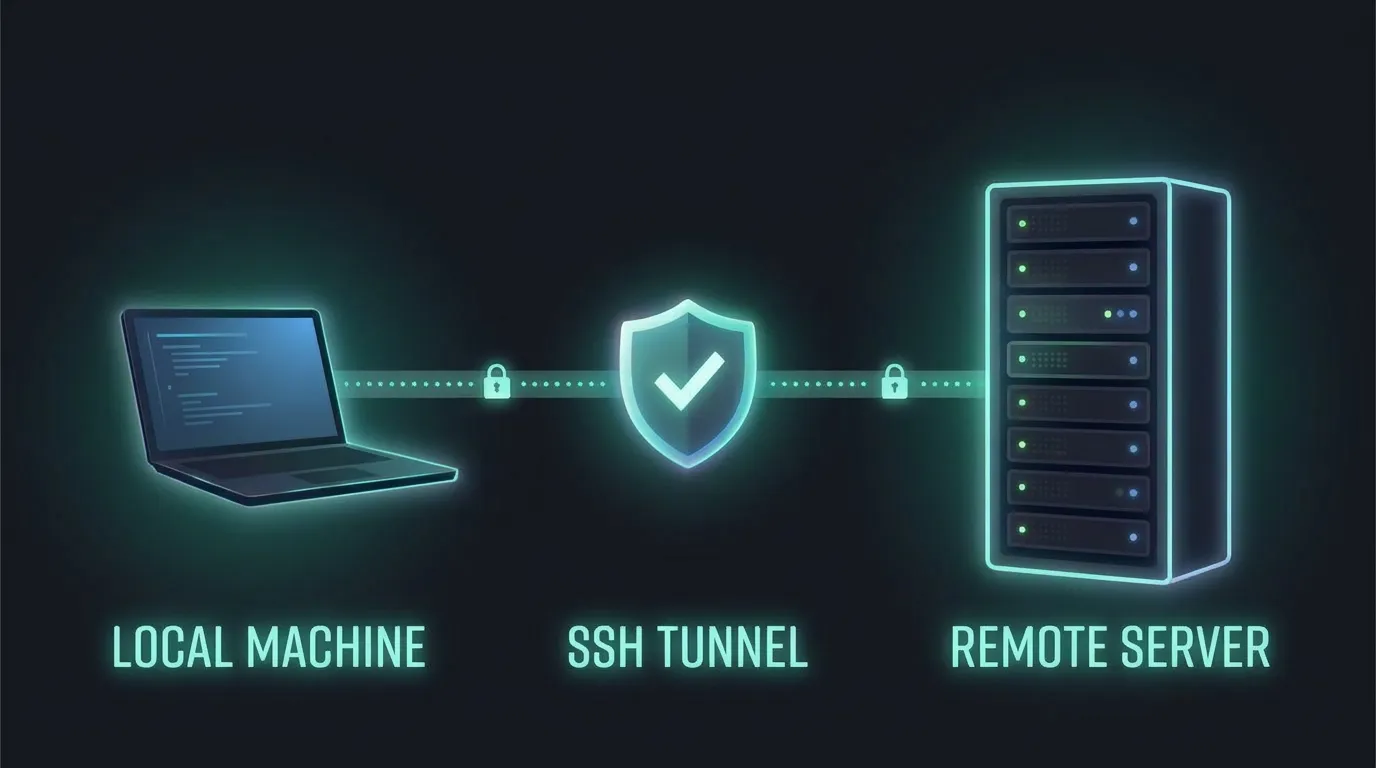
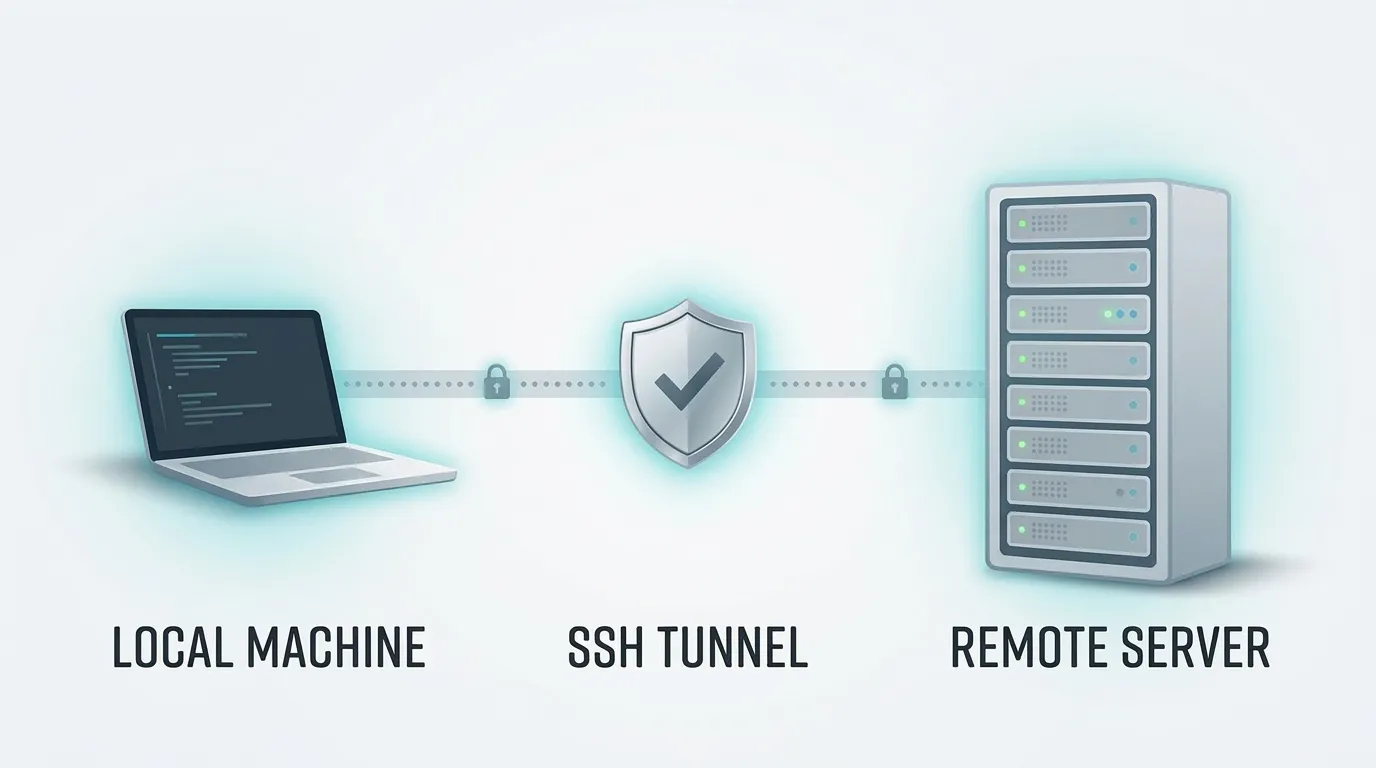
Local backups protect you from accidental deletions and hardware failures, but what if your machine is stolen, your house floods, or a fire destroys everything? A remote backup repository on a separate server gives you true off-site protection. In this guide, we'll set up a remote server running Borg so you can use it as a backup target with Arco.
Borg doesn't require a separate server process or daemon. It communicates entirely over SSH. When you run a backup, Borg automatically connects to the remote machine and runs borg serve on the other end. All you need is SSH access and Borg installed on both sides.
Prerequisites
- A remote server or VPS with SSH access (any Linux distribution)
- Arco or Borg CLI installed on your local machine (Arco bundles Borg, so a separate install is only needed for the CLI path)
- Basic familiarity with the terminal
Step 1: Install Borg on the Server
SSH into your server and install Borg Backup. The package is available in most distribution repositories:
Verify the installation:
$ borg --versionYou should see something like borg 1.4.5.
Step 2: Create a Dedicated Backup User
It's good practice to create a separate user for backup operations. This limits access and makes it easy to audit:
$ sudo useradd -m -d /home/borg -s /bin/bash -r borgCreate a directory to store your backup repositories:
$ sudo mkdir -p /home/borg/backups$ sudo chown borg:borg /home/borg/backupsStep 3: Set Up SSH Key Authentication
On your local machine, generate an SSH key if you don't already have one:
$ ssh-keygen -t ed25519 -C "arco-backup"Display your public key so you can copy it:
$ cat ~/.ssh/id_ed25519.pubNow on the server, add the public key to the borg user's authorized keys. Since the borg user has no password, you'll do this via sudo as your regular user:
$ sudo mkdir -p /home/borg/.ssh$ echo 'paste-your-public-key-here' | sudo tee /home/borg/.ssh/authorized_keys$ sudo chown -R borg:borg /home/borg/.ssh$ sudo chmod 700 /home/borg/.ssh$ sudo chmod 600 /home/borg/.ssh/authorized_keysAlternatively, if you set a password on the borg user (sudo passwd borg), you can copy the key in one step from your local machine. You can remove the password afterwards with sudo passwd -d borg.
$ ssh-copy-id borg@your-serverBack on your local machine, test the connection. You should be able to log in without a password prompt:
$ ssh borg@your-serverStep 4: Initialize & Connect
Now create an encrypted repository on the server and connect to it. Choose your preferred method:
- Click "Add Repository" or "Add Backup Profile"
- Select Remote in the Repository dialog
- Enter your repository passphrase (if encrypted) and a name
- Click "Create" or "Connect"
From your local machine, initialize a new encrypted repository on the server:
$ borg init --encryption=repokey-blake2 borg@your-server:/home/borg/backups/my-repoAfter initialization, export your encryption key and store it somewhere safe (e.g. a password manager):
$ borg key export borg@your-server:/home/borg/backups/my-repo key-backup.txtChoose a strong passphrase and store it securely. Without this passphrase, your backups cannot be decrypted.
A note on encryption modes:
- repokey-blake2 (recommended): the encryption key is stored inside the repository, protected by your passphrase. BLAKE2b is faster than SHA-256 on modern CPUs.
- keyfile-blake2: the key is stored locally on your machine instead of in the repository. More secure if the server is untrusted, but you must back up the key file separately.
Step 5: Run Your First Backup
Now that your repository is ready, run your first backup to make sure everything works end to end:
- Open Arco and select the Backup Profile you just connected (or create a new one)
- Click "Backup Now"
- Once it finishes, check the Archives tab to see your new archive listed
Your first backup may take a while depending on the amount of data. Subsequent backups will be much faster thanks to deduplication.
From your local machine, create your first archive:
$ borg create borg@your-server:/home/borg/backups/my-repo::first-backup ~/Documents ~/PicturesOnce it finishes, verify the archive was created:
$ borg list borg@your-server:/home/borg/backups/my-repoOptional: Harden SSH Access
For extra security, you can restrict the borg user's SSH key to only run Borg commands. On the server, back up your authorized_keys file first, then edit /home/borg/.ssh/authorized_keys and prepend this to your key line:
command="borg serve --restrict-to-path /home/borg/backups --append-only",restrict ssh-ed25519 AAAA... arco-backupThis does two things:
- restrict: disables shell access, port forwarding, and agent forwarding. Even if the SSH key is compromised, it can only run the specified command.
- --append-only: prevents the client from deleting or modifying existing archives. This is critical for ransomware protection: a compromised machine can create new backups but cannot destroy old ones.
After applying this restriction, ssh borg@your-server will no longer open a shell. This is expected and desired. Only borg serve will run.
Consider adding a second SSH key without the --append-only restriction for administrative tasks like pruning. With append-only mode, pruning old archives must be done server-side or via this separate admin key.
Troubleshooting
- Connection refused: Check that SSH is running on the server (systemctl status sshd) and that your firewall allows port 22.
- Permission denied: Verify the SSH key is in /home/borg/.ssh/authorized_keys with correct permissions (chmod 700 ~/.ssh && chmod 600 ~/.ssh/authorized_keys).
- "borg: command not found" on server: Borg may not be in the default PATH for the borg user. Try specifying the full path: borg init ... --remote-path /usr/bin/borg.
- Slow transfers: Consider enabling Borg's built-in compression with --compression zstd to reduce bandwidth usage.
- "Repository locked": Another Borg process may still be running, or a previous one crashed. If you're sure nothing is running, clear the stale lock with borg break-lock borg@your-server:/home/borg/backups/my-repo.
- Storage space: Make sure /home/borg/backups has enough disk space. Borg deduplicates well, but the first backup is roughly the full size of your data.
Tips
- Disable password authentication: Once SSH key auth is working, set PasswordAuthentication no in /etc/ssh/sshd_config on the server and restart sshd for stronger security.
- SSH config shortcut: Add an entry to ~/.ssh/config on your local machine to avoid typing the full address every time:
Host your-server HostName 203.0.113.1 User borg IdentityFile ~/.ssh/id_ed25519Then use borg init your-server:/home/borg/backups/my-repo instead of the full borg@203.0.113.1:... path.
For more help, check the Borg documentation or open an issue on Arco's GitHub.